Installation
Setup Backend
Localhost Windows
1. Setup WSL2
open Powershell and run
wsl --installEnable WSL: open Powershell as Admin and run
dism.exe /online /enable-feature /featurename:Microsoft-Windows-Subsystem-Linux /all /norestartEnable Virtual Maschine: open Powershell as Admin and run
dism.exe /online /enable-feature /featurename:VirtualMachinePlatform /all /norestartreboot your PC
download and install WSL2
set WSL2 as defaul: open Powershell as Admin and run
wsl --set-default-version 2
2. Install Linux Distribution
Open Microsoft Store and install a Linux distribution (f.e. Ubuntu 20.04.4 LTS)
Follow Instructions for your Linux distribution to set it up
it is possible to install ansible with apt (
sudo apt install ansible), but its recommended to install it with python like in the official documentationmake sure to have python with pip installed
python3 -m pip -Vthen install ansible with python
python3 -m pip install --user ansibleansible --versionnote that ansible is not added to PATH
add it to path or use it directly with
/home/<user>/.local/bin/ansibleit should look like this on your linux vm
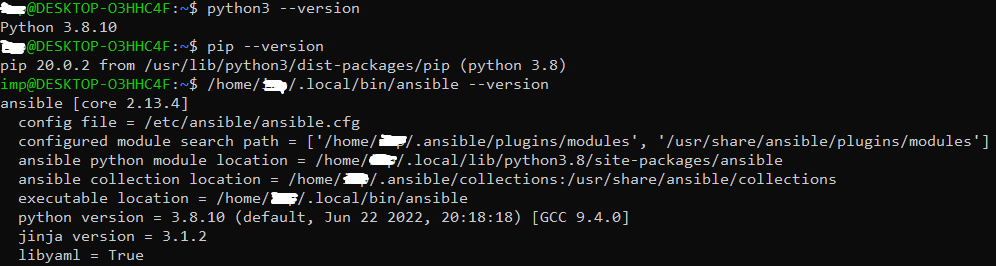
to verify your linux Installation is running on WSL2, run:
wsl --list --verboseit should be 2 in the VERSION column

3. Install Docker for Windows
download and install Docker
make sure “Install required Windows Components for WSL2” is checked
in Docker Desktop go to Settings > General and make sure “Use the WSL 2 based engine” is checked
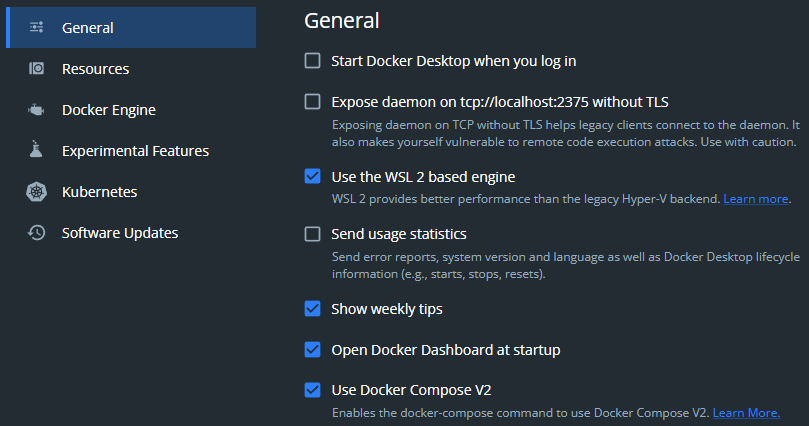
go to Settings > Resource > WSL Integration and enable integration for your linux distribution
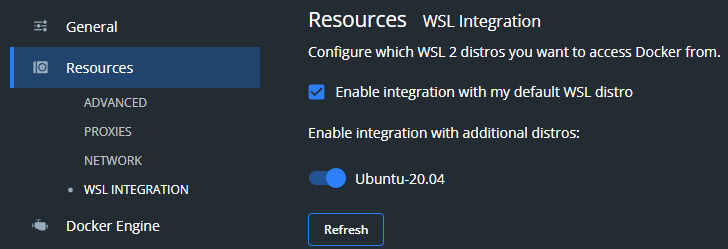
if it doesnt run correctly, you might need to enable virtualisation in BIOS-Settings. Check your Motherboard Manufacturers Documentation to enable it.
4. Install Node.js
install Node.js atleast version 14. but its good to install the latest stable LTS version
open Powershell as Admin and run:
corepack enableto verify installation run:
node --versionandyarn --version
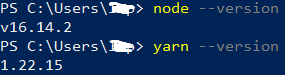
5. Deploy
Open your Linux Distribution
clone this repository
edit ansible/host_vars/localhost/vars.yml
localhost_ip: <your localhost_ip>
segmensation_root_path: <path_segmensation>
traefik_root_path: <path_traefik>
to get your localhost ip, open Powershell and run:
ipconfig /allEthernet adapter Ethernet: IPv4 Address: “your_ip”
example paths:
segmensation_root_path: /mnt/c/Users/<user>/Desktop/srv/
traefik_root_path: /mnt/c/Users/<user>/Desktop/srv/traefik
in the ansible folder on linux run:
ansible-playbook -i inventory -l "localhost" playbook.yml -u <user> --ask-pass --ask-become-pass --ask-vault-pass“user” is your linux user name
“sshpw” is an ssh key of your maschine (not necessary)
“becomepw” is your sudo password from your linux
“vaultpw” is in the KeePass database
now you should have a segmensation and traefik folder with docker-compose files in it
6. Run
Open Powershell and navigate to the traefik folder
docker-compose up -dOpen Powershell and navigate to the segmensation folder
docker-compose up -dnow you should see the containers running in Docker Desktop
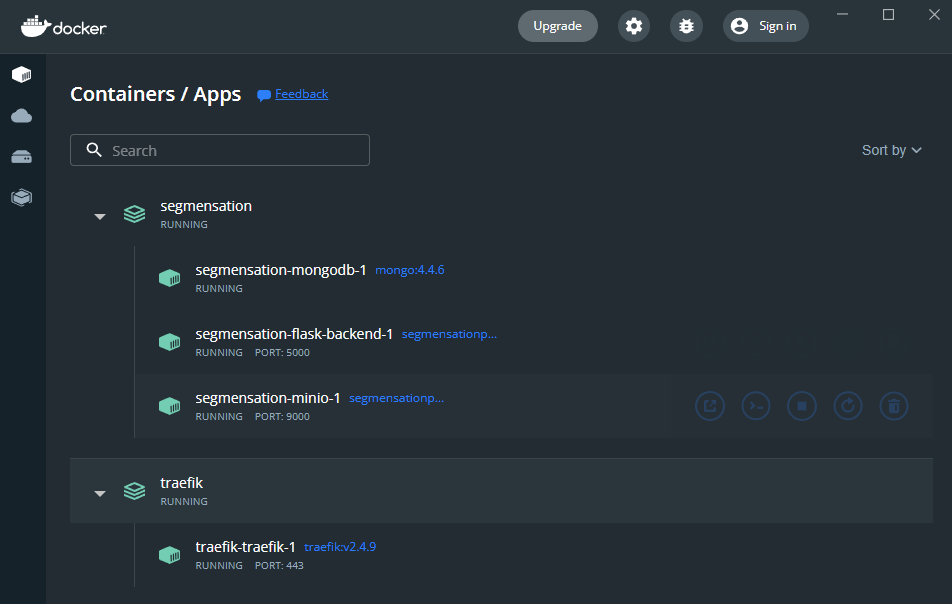
Note
For building and testing your own code, replace this step with the steps in Setting up Segmensation for development.
Localhost Linux
1. Install Docker
sudo pacman -S docker docker-compose(pacman is the package manager in Archlinux, use your package manager)Reboot
to start docker service
sudo systemctl start docker.serviceto start docker service on every boot
sudo systemctl enable docker.serviceadd user to docker group
sudo usermod -aG docker $USERReboot or Re-Login
docker run hello-world
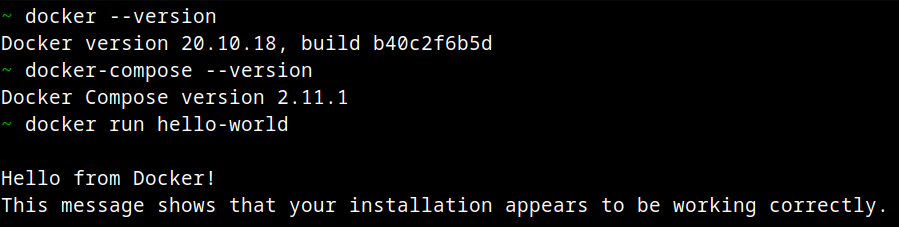
2. Install Ansible
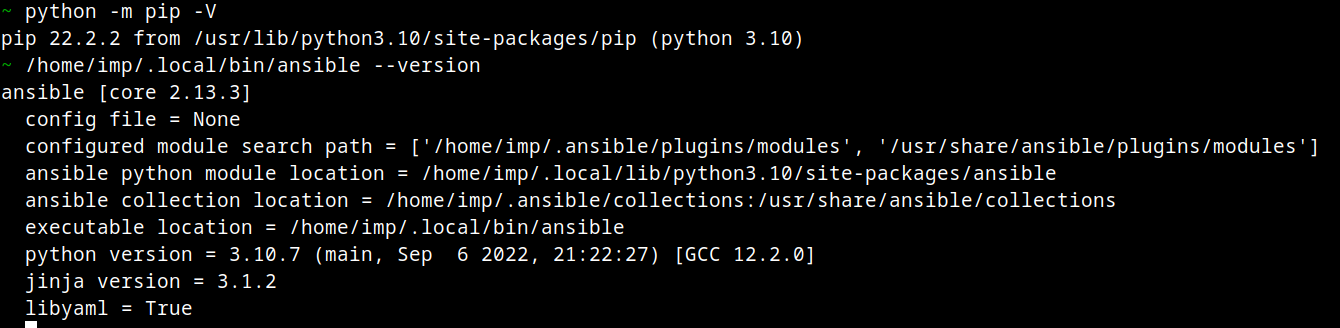
make sure to have python with pip installed
python3 -m pip -Vthen install ansible with python
python3 -m pip install --user ansibleansible --versionnote that ansible is not added to PATH
add it to path or use it directly with
/home/<user>/.local/bin/ansible
3. Install Node.js
sudo pacman -S nodejsrun:
corepack enableto enable yarnto verify installation run:
node --versionandyarn --version
4. Deploy
Open your Linux Distribution
clone this repository
edit ansible/host_vars/localhost/vars.yml
localhost_ip: <your localhost_ip>
segmensation_root_path: <path_segmensation>
traefik_root_path: <path_traefik>
to get your localhost ip, open shell and run:
ip addrwlan0: … inet <your_ip> …
example paths:
segmensation_root_path: /home/<user>/srv/
traefik_root_path: /home/<user>/srv/traefik
in the ansible folder on linux run:
ansible-playbook -i inventory -l "localhost" playbook.yml -u user --ask-pass --ask-become-pass --ask-vault-passuseris your linux user namesshpwis an ssh key of your maschine (not necessary)becomepwis your sudo password from your linuxvaultpwis in the KeePass database
if you havent added ansible to you path use:
/home/<user>/.local/bin/ansible-playbook -i inventory -l "localhost" playbook.yml -u user --ask-pass --ask-become-pass --ask-vault-pass
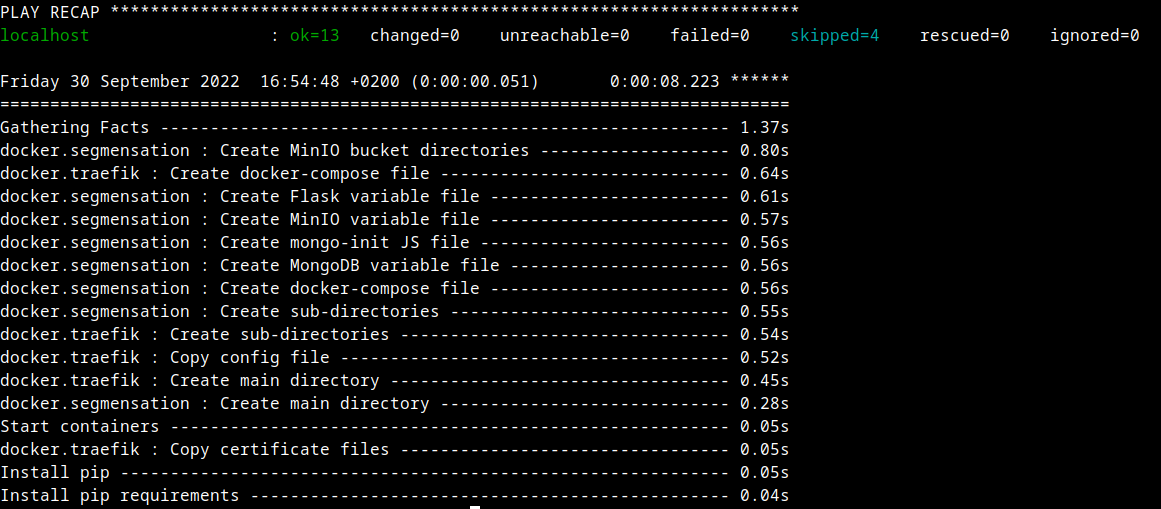
now you should have traefik and segmensation folders with docker-compose files in it
5. Run
Open terminal and navigate to the traefik folder
docker-compose up -dOpen terminal and navigate to the segmensation folder
docker-compose up -dshow current containers with docker
docker ps

Server Linux
make sure python3 and pip is installed properly
python3 -m pip -Vinstall ansible
python3 -m pip install --user ansiblemake sure to have docker(v20.x.x) and docker-compose(v2.x.x) installed
docker --versionanddocker-compose --versionclone this repository SegInfrastructure
edit in /ansible/inventory 2nd line:
ansible_host=<server_ip>to your servers ipgo into /ansible/ and run
ansible-playbook -i inventory -l "prod_server" playbook.yml -u <user> --ask-pass --ask-become-pass --ask-vault-passuseruser to who you connected over sshsshpwthe ssh password to your userbecomepwis your sudo password from your uservaultpwis in the KeePass database
if you havent added ansible to you path use:
/home/<user>/.local/bin/ansible-playbook -i inventory -l "prod_server" playbook.yml -u user --ask-pass --ask-become-pass --ask-vault-pass
Setup Frontend
clone this repository SegApp
set
ELECTRON_WEBPACK_APP_API_URL="http://localhost:5000"in segmansation-app/.envor
ELECTRON_WEBPACK_APP_API_URL="http://<server_ip>:5000"if Backend is running on a serverfollow README there to set it up
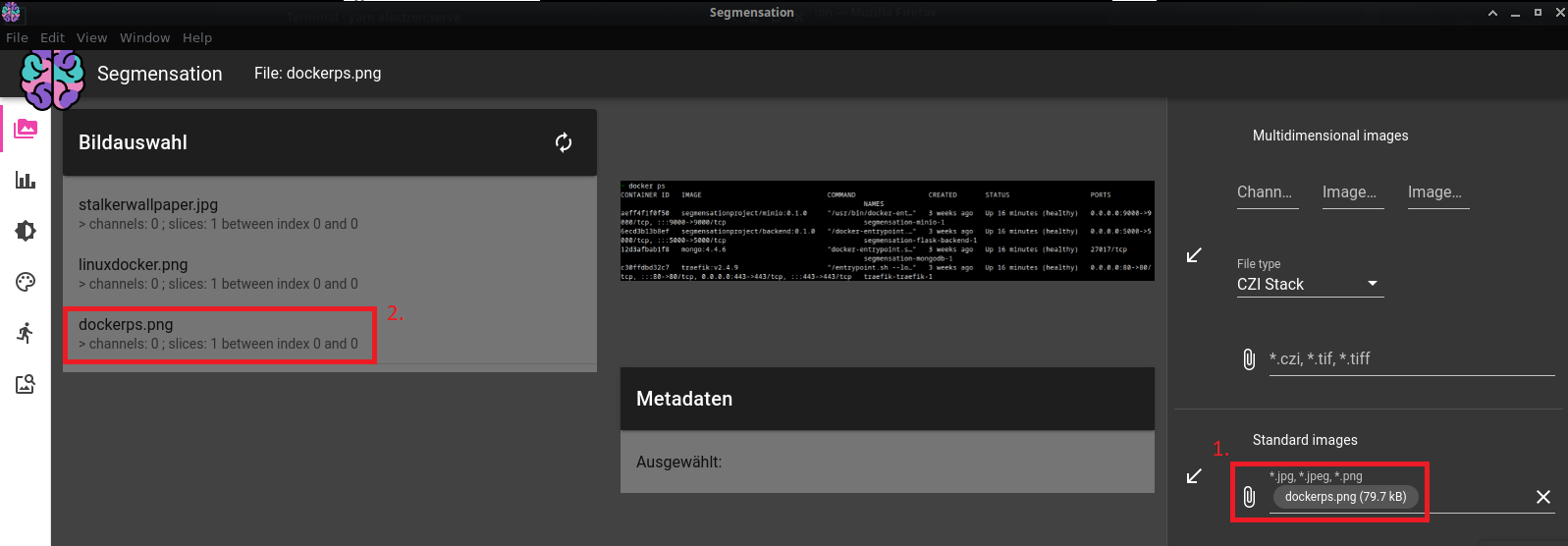
to verify everything is working correctly, firstly upload any image, then wait until its processed and finally click on the uploaded image to show it
Troubleshooting
if you cant connect the App to the Infrastructure, make sure you did all the steps correctly and not using outdated versions
f.e. the “” in
ELECTRON_WEBPACK_APP_API_URL="http://localhost:5000"is mandatoryif you run a firewall, make sure that docker haves rules for it, so that the App can connect to docker
sudo ufw allow from 172.18.0.0/16 to any port 443sudo ufw allow from 172.18.0.0/16 to any port 80